

REVIEW ARTICLE

DATA ANALYSIS IN QUALITATIVE RESEARCH: A BRIEF GUIDE TO USING NVIVO
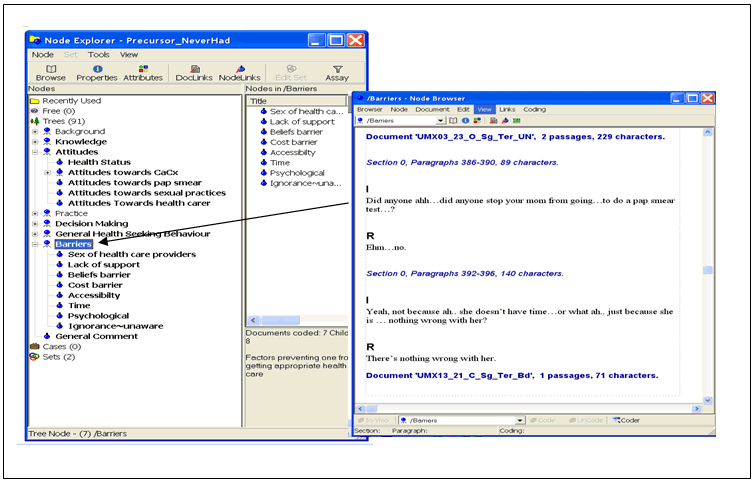
Figure 4. Node explorer with a tree node highlighted (click image to enlarge)
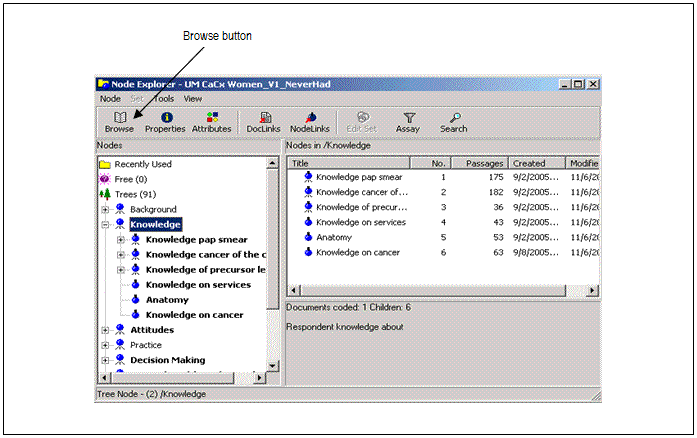
Figure 5. Browsing a node (click image to enlarge)
The document browser is the main work space for coding documents (Figure 3). Documents in NVivo can be created inside the NVivo project or imported from MS Word or WordPad in a rich text (.rtf) format into the project. It can also be imported as a plain text file (.txt) from any word processor. Transcripts of interview data and observation notes are examples of documents that can be saved as individual documents in NVivo. In the document browser all the documents can be viewed in a database with short descriptions of each document.
Figure 3. Document browser with coder and coding stripe activated. (click image to enlarge)

Coding in NVivo using Coder
Coding is done in the document browser. Coding involves the desegregation of textual data into segments, examining the data similarities and differences, and grouping together conceptually similar data in the respective nodes.11 The organised list of nodes will appear with a click on the Coder button at the bottom of document browser window.
To code a segment of the text in a project document under a particular node, highlight the particular segment and drag the highlighted text to the desired node in the coder window (Figure 3). The segments that have been coded to a particular node are highlighted in colours and nodes that have attached to a document turns bold. Multiple codes can be assigned to the same segment of text using the same process. Coding Stripes can be activated to view the quotes that are associated with the particular nodes. With the guide of highlighted text and coding stripes, the researcher can return to the data to do further coding or refine the coding.
Coding can be done with pre-constructed coding schemes where the nodes are first created using the Node explorer followed by coding using the coder. Alternatively, a bottom-up approach can be used where the researcher reads the documents and creates nodes when themes arise from the data as he or she codes.
Making and using memos
In analysing qualitative data, pieces of reflective thinking, ideas, theories, and concepts often emerge as the researcher reads through the data. NVivo allows the user the flexibility to record ideas about the research as they emerge in the Memos. Memos can be seen as add-on documents, treated as full status data and coded like any other documents.12 Memos can be placed in a document or at a node. A memo itself can have memos (e.g. documents or nodes) linked to it, using DocLinks and NodeLinks.
Creating attributes
Attributes are characteristics (e.g. age, marital status, ethnicity, educational level, etc.) that the researcher associates with a document or node. Attributes have different values (for example, the values of the attribute for ethnicity are ‘Malay’, ‘Chinese’ and ‘Indian’). NVivo makes it possible to assign attributes to either document or node. Items in attributes can be added, removed or rearranged to help the researcher in making comparisons. Attributes are also integrated with the searching process; for example, linking the attributes to documents will enable the researcher to conduct searches pertaining to documents with specified characteristics (Figure 6).
